
See every screen. Keep every student on task.
Senso gives teachers the classroom management tools to monitor student screens, focus attention, share resources and support individual students, from lesson start to work collection, without needing IT involvement during the session. Works on Chromebook, Windows, macOS and iOS.
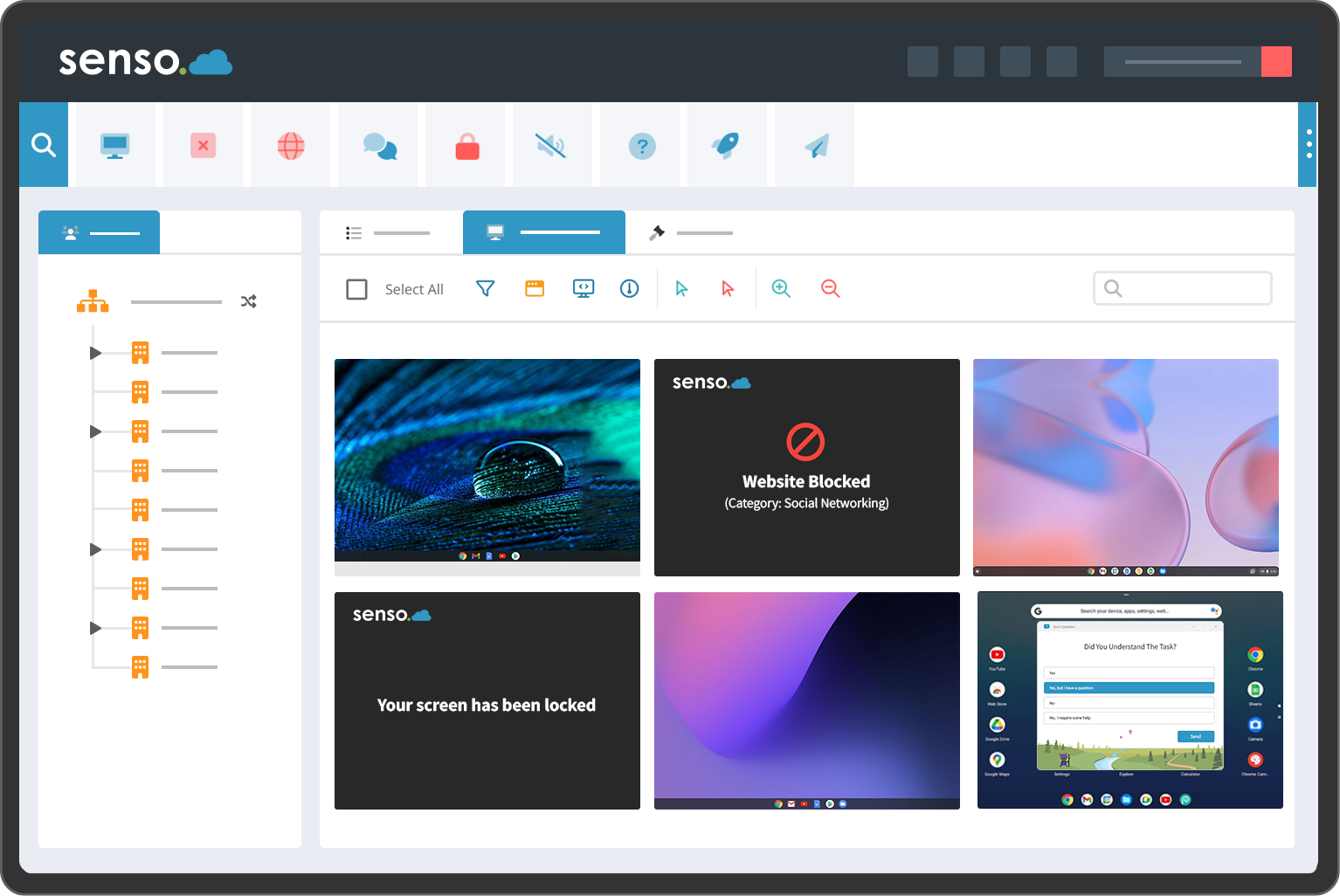
How a lesson works with Senso
From opening the app to collecting work, what changes in your working day
Digital classroom management covers the full lesson lifecycle. Each step below maps to a specific capability in Senso Classroom Management.
Start the lesson, class synced automatically
Open Senso Classroom Management and your class list is already there. If the school uses Microsoft Teams, Google Classroom, ClassLink or Clever, student rosters sync automatically. No manual group building before the lesson. Select your class, start the session, and Senso discovers the devices of every student in that group.
Classroom Management →View every student screen with live thumbnails
Live thumbnail view shows every student device simultaneously, updated continuously. Student screen monitoring means you spot the student who has drifted to a video site, opened a game, or is simply not on task the moment it happens, without walking the room or disrupting the rest of the class. Thumbnails can be enlarged for a clearer view of any individual screen.
Classroom Management →Regain attention without raising your voice
When attention slips, classroom control software tools give you immediate options. Lock all student screens with a custom on-screen message. Blank screens to remove visual distraction. Send a class-wide or individual message that appears directly on the student's display. Play an alert sound. Every control works from the same teacher interface, no context switching.
Classroom Management →Share your screen, launch resources and check understanding
Push your screen to all student devices so every student sees what you are working through, useful for demonstrations, reading or modelling. Open a website or resource on all student devices at once using Launch URL. Ask a Quick Question, yes/no or multiple choice, and see every student response in real time as a live comprehension check, with no additional polling tool required.
Classroom Management →Send resources and collect completed work
Use Send File to push a resource, template or assessment document directly to student devices at the start of a task. At the end of the session or activity, Collect Files retrieves completed work from every student in the class. Files land in a teacher-accessible folder, organised by student, no email chains, no shared drive confusion, no chasing submissions.
Classroom Management →Help an individual student, discreetly
When a student needs one-to-one guidance, open a private live chat to communicate directly without drawing class attention. If the student is struggling with something on screen, use remote assistance to take over their device and demonstrate, or guide them through the steps. Individual support given discreetly, while the rest of the class continues working.
Classroom Management →Use Senso Scenes for repeatable lesson or exam conditions
Senso Scenes let you save a complete classroom configuration, including the websites permitted, the applications available, the screen controls active, as a named preset. One click applies the full configuration. Scenes are particularly useful for exam conditions, where a locked-down, consistent environment must be reproduced reliably every time without manual reconfiguration before each session.
Classroom Management →Classroom tools
Classroom control software, designed for teachers, managed by IT
IT teams control which tools are available. Teachers use what IT has enabled.
Live thumbnail view
See every student screen at a glance. Spot off-task behaviour without disrupting the lesson.
Screen lock
Lock all screens, or just one, to regain class attention instantly. Customisable message shown on locked screens.
Send message
Send a message to a student or the whole class without interrupting the lesson flow. Students see it on their screen.
Quick Question
Ask the class a yes/no or multiple-choice question and see every student response in real time. Instant comprehension check.
Remote assistance
Take control of a student device to offer direct guidance or demonstrate, without leaving your desk.
Web restriction
Restrict student browsing to specific sites during a lesson, ensuring students stay focused on the task without full IT intervention.
Live chat
Send a private message or instruction to a student without drawing class attention. Give advice discreetly.
Blank screen
Blank all student screens to direct attention, useful at the start of a session or during an instruction period.
Send File
Push a resource or assessment document to every student device in one action at the start of a task.
Collect Files
Retrieve completed work from every student at the end of a task, organised by student, in one place.
Launch URL
Open a specific website on every student device simultaneously, directing the class to a shared resource instantly.
Senso Scenes
Save and reapply a complete classroom configuration, including permissions, controls and restrictions, as a named preset.
Platform coverage
Mixed-device classrooms, one teacher view
Student screen monitoring in Senso works across Chromebook, Windows, macOS and iOS in the same classroom session. A teacher with a mixed device cohort sees all student screens in a single live thumbnail view, no separate consoles per device type.
Class roster integration with Microsoft Teams, Google Classroom, ClassLink and Clever means the right students appear automatically at session start. No manual list building, and no reliance on the same login state across lessons.
- Chromebook, Windows, macOS and iOS in the same session view
- Roster sync with Microsoft Teams, Google Classroom, ClassLink and Clever
- No IT involvement required to start or run a classroom session
- Teacher permissions set centrally by IT, applied automatically per session
Simple by design
You don't need to be a technology expert to use Senso
Senso Classroom Management is built for teachers, not IT specialists. IT teams configure what is available and set permission boundaries; teachers open the application and start their class. No setup required before each session. Classroom management tools for teachers should reduce workload, not add to it.
- No technical knowledge required to run a classroom session
- IT controls what tools are available; teachers work within that
- Works across Chromebook, Windows, macOS and iOS in the same session
- Quick Question, lock, message and view all accessible from the same interface
- Senso Scenes save repeatable configurations, lesson or exam conditions ready in one click
See Senso from a teacher's perspective
Book a demonstration; we'll show you exactly what a teacher sees and how a classroom session works from start to work collection.